

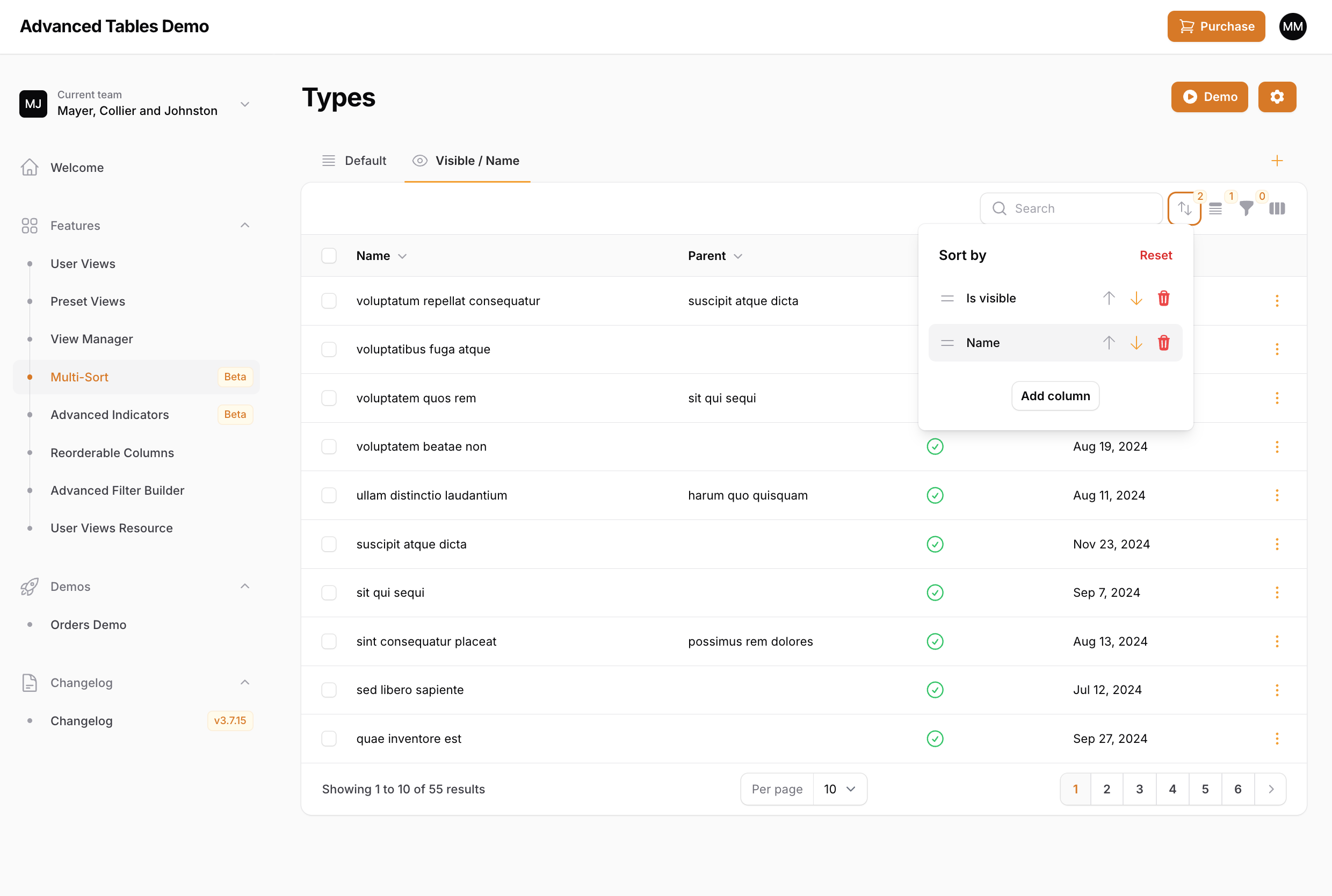
 Advanced Tables now allows your users to sort their tables by multiple columns. Using the new Multi-Sort dropdown, users can add additional columns to sort by, easily change sort direction, and even reorder the columns. And Multi-Sort is completely integrated with Preset Views and User Views.
Updating to the Multi-Sort Beta
-
Update to the beta
To update to the beta update your
composer.jsonfile to: -
Compile assets
After updating run
npm run buildandphp artisan filament:upgrade. - Install Default Views (optional) If you would also like to use the new Default Views, follow these instructions.
Using Multi-Sort
To use multi-sort:- Click the new multi-sort button in the table toolbar to open the multi-sort dropdown.
- Click the
Add columnbutton to add a column to sort by. Only->sortable()table columns will be shown. - Use the
upanddownarrow buttons to change the sort direction. - You may add additional columns and then drag and drop the them in the order you prefer.
Using with Preset Views
You can apply multi-sorting in your Preset Views through thedefaultSort() method:
Multi-Sort configurations
Advanced Tables offers multiple ways to customize Multi-Sort. Unless specified otherwise, these options can be configured directly on theAdvancedTablesPlugin object inside your PanelProvider.
Disabling Multi-Sort
Advanced Tables enables multi-sorting by default. You may disable this by passing false to themultiSortEnabled() method:
Changing the icon
You may change the icon used for the Multi-Sort dropdown using themultiSortIcon() method:
Hiding the badge
By default, when one or more columns is being sorted, the Multi-Sort dropdown button will display a badge indicating the number of columns that are being sorted. You may hide the badge by passingfalse to the multiSortBadge() method: