

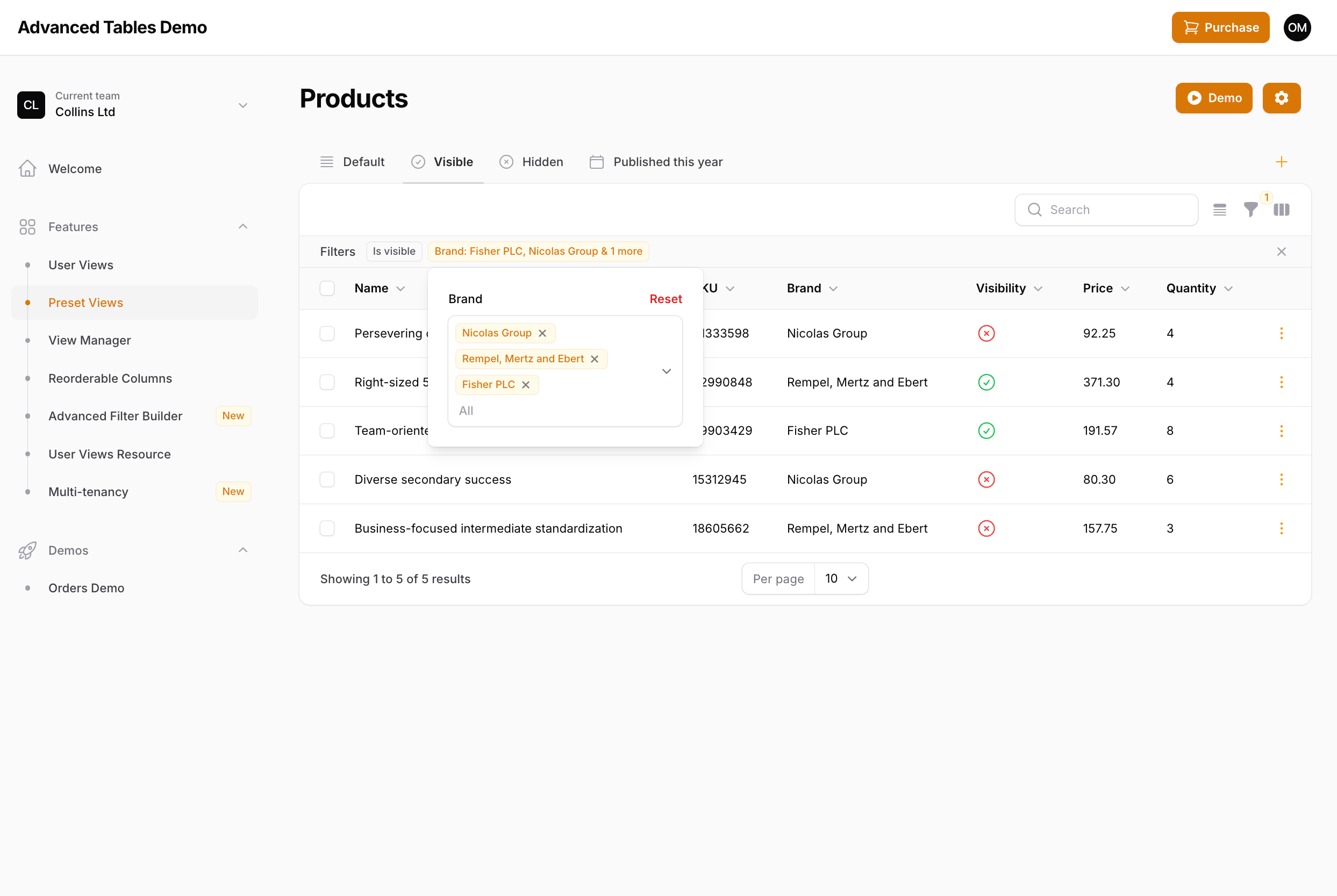
Important: Quick Filters is one of the biggest additions to Advanced Tables since it’s initial launch and I’m very excited to be able to bring this functionality to Filament. However, since additional configuration is needed, there are still outstanding features to be implemented, known limitations exist, and there may be custom Filament implementations that haven’t been accounted for, this feature is disabled by default. Please read all the instructions fully to know what is currently supported, what is under development, and what may not be supported. If you do find an issue, please reach out to me on discord our through email.Quick Filters gives your users quick access to their filters through Filament’s indicator system. When enabled, each indicator can be clicked on to access that filter’s settings. In addition, filters can be favorited and “pinned” so they always appear, even when not active.
Enabling Quick Filters
-
Enable Quick Filters
Quick Filters is disabled by default. To enable, add
quickFiltersEnabled()to your panel provider: -
Compile assets
After enabling be sure to run
npm run buildandphp artisan filament:upgrade. -
Update Custom Filter Classes
Quick Filters automatically overrides any default Filament filters you have included in your resource or page. However, any custom filter classes that you have created that extends a Filament filter will need to be updated to use Advanced Table’s versions. This can be easily accomplished by just updating your imported class with the plugins equivalent:
Remember, you only need to override custom filter classes you have created. Filters used within Filament’s resources and pages will be overridden automatically.
- Add the AdvancedTables trait If you haven’t already, add the AdvancedTables trait to your table.
Using Quick Filters
Once enabled, Quick Filters should work right out the box with minimal configuration. Just click on any indicator to see the form field(s) associated with that filter. Any adjustments to that filter will be immediately reflected in the table and synced to filament’s filter form.Custom Filters with Multiple Form Fields
When implementing custom filters with multiple form fields in Filament, there are two main ways to display the indicator(s). You could display a single indicator that adapts according to the fields that are set, or you could have individual indicators for each field. As an example, take the following date filter examples which have two date fields, but display the indicator differently. Example 1 - Display as a single indicator: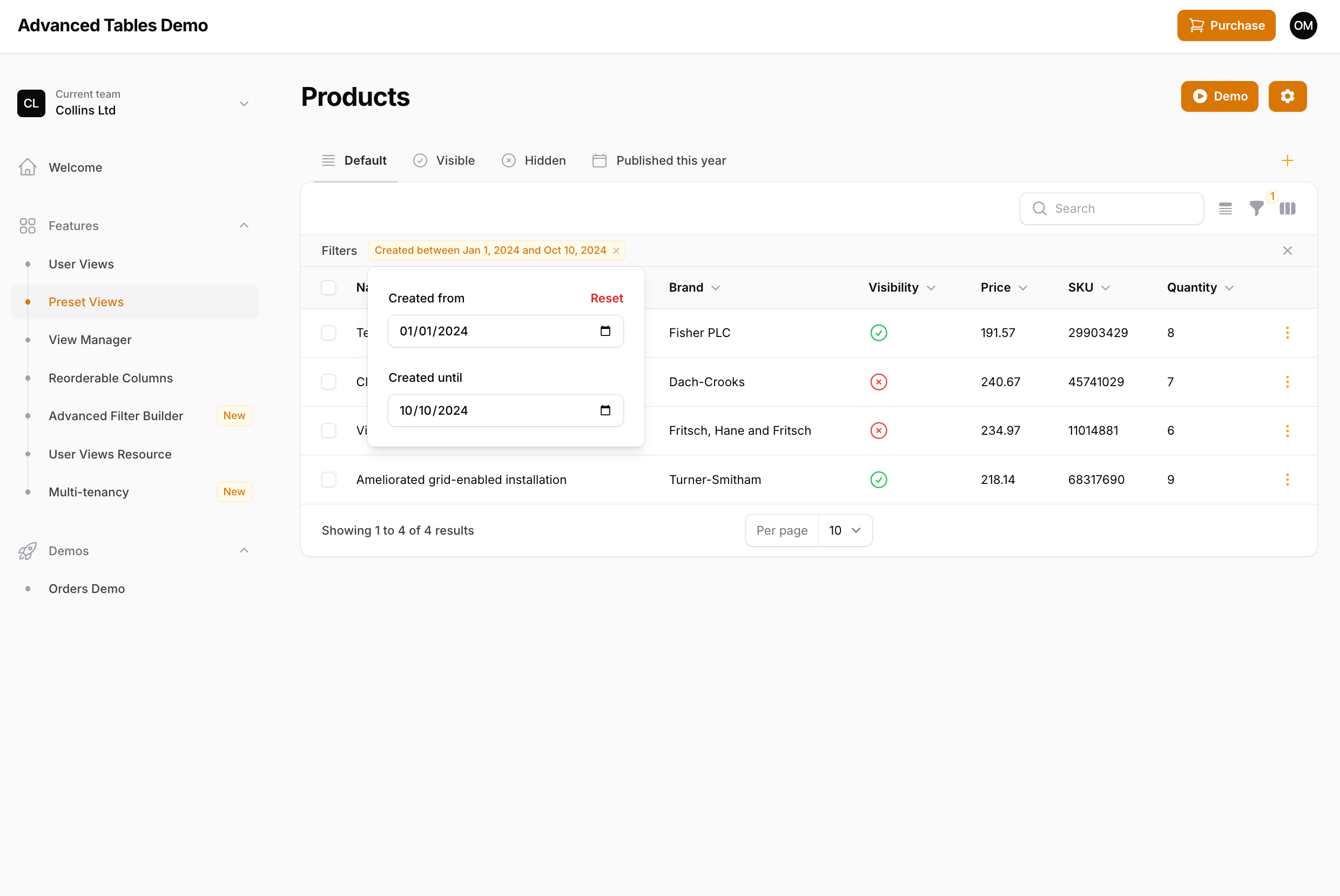
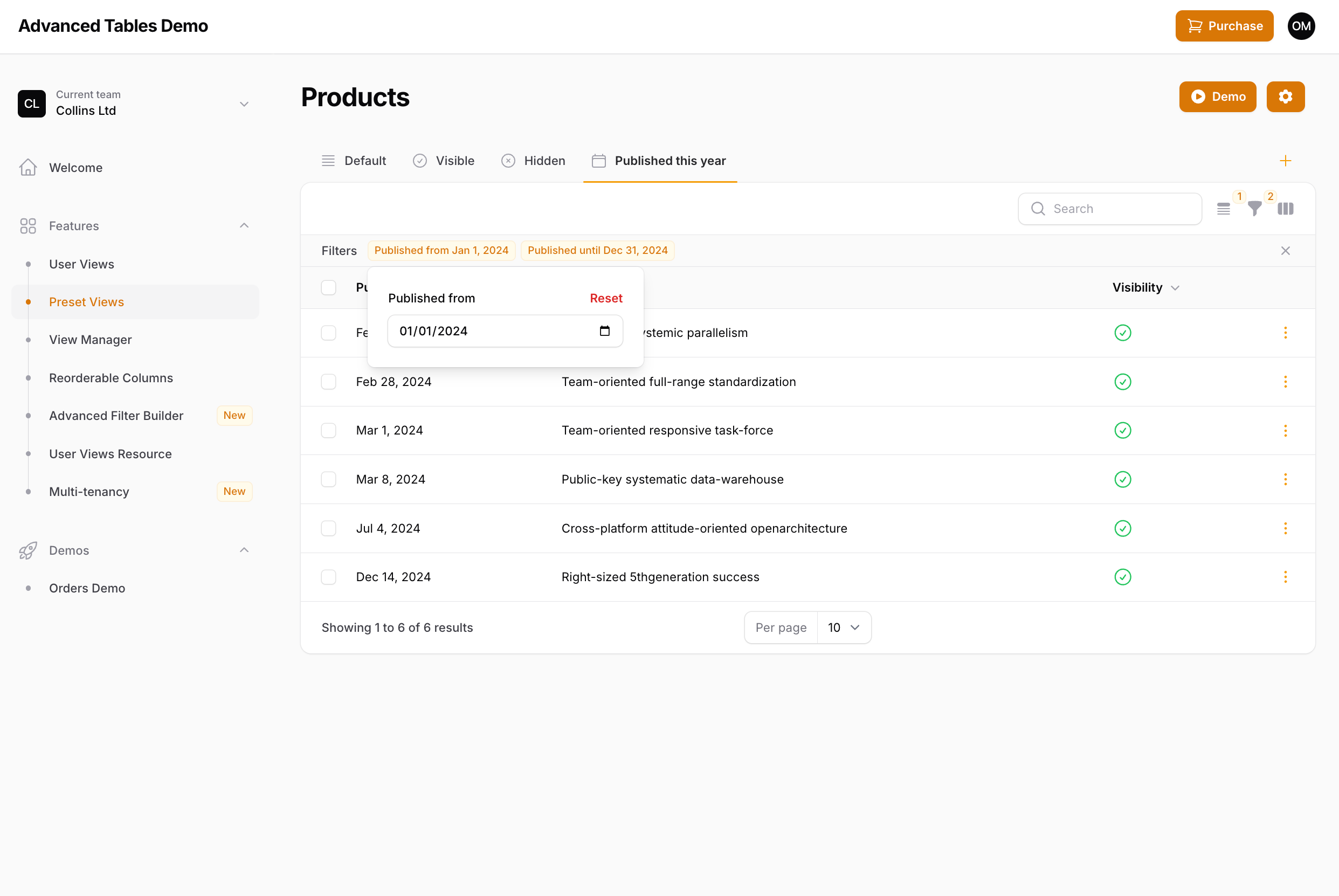
->multipleIndicators() method:
Example 1 - Display as a single indicator:
Note: Displaying indicators outside of these two examples (ie. a single indicator for all form fields, or a one-to-one field/indicator setup), is not currently supported. If you have a filter set up like this, please contact me.
Favorite Filters
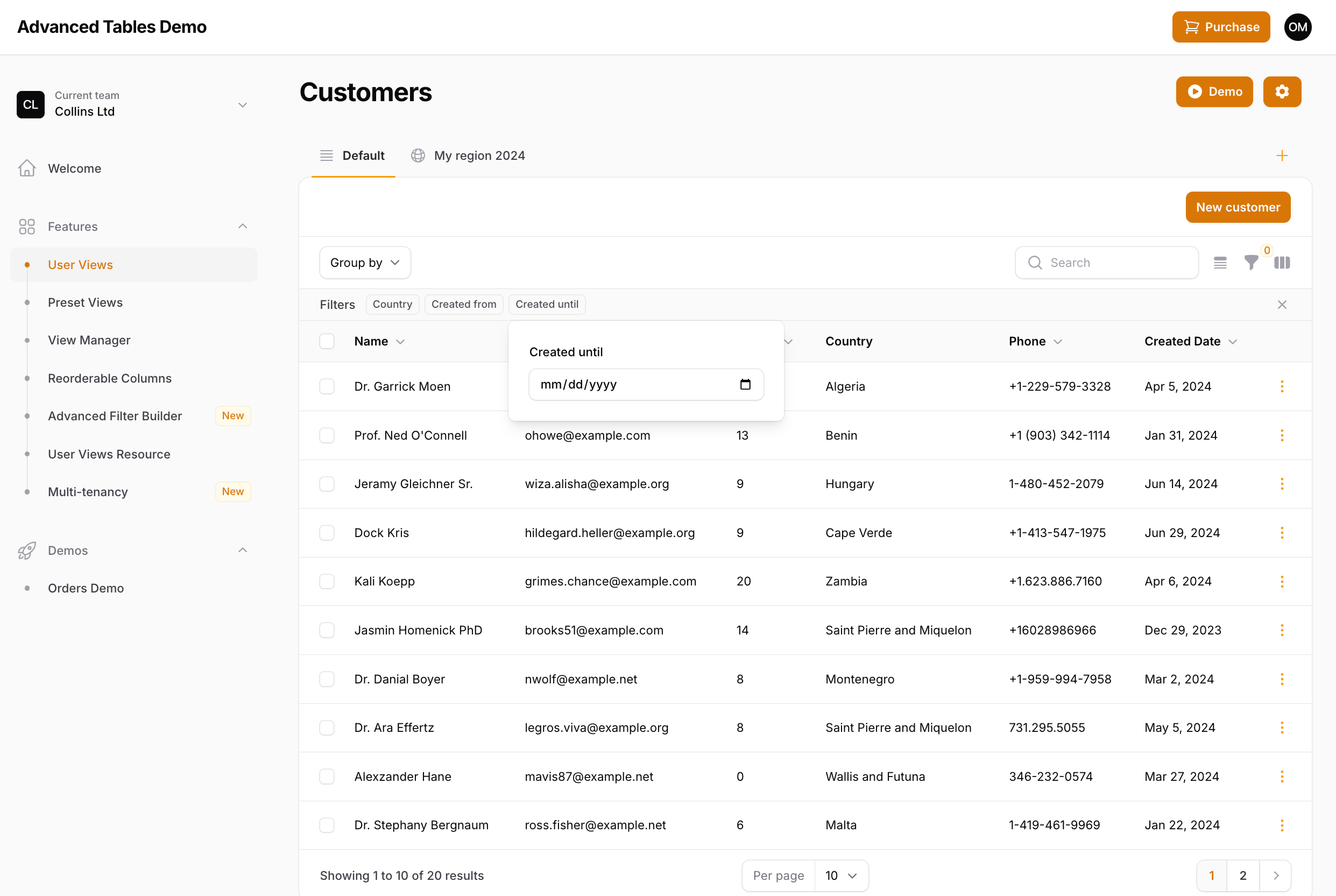 Quick Filters not only gives you quick access to applied filters, but also allows you to specify “favorite” filters which will always be displayed in the indicator bar, even when the filter is not active. You can make a filter a favorite by using the
 ->favorite() method:
Note: Support for Filament’s ->columns() method on filters is coming soon.
Limiting the Indicator labels
Quick Filters also introduces the ability to limit the number of labels that are shown on a Select Filter. Since you now have easy access to filters through the indicator, it may not be necessary to pollute the indicator bar with an excessively long indicator. To limit the indicator labels you may use the ->limitIndicatorLabels() method:
& 3 more will be displayed. However, you may change this by publishing and updating the plugin’s language files and updating the more_indicator_labels value in the advanced-tables.php language file:
Specifying Favorite Filters in Preset Views
If you are using Preset Views you may configure which filters should be displayed as favorites using the->defaultFavoriteFilters() method:
Note: When defining default favorite filters, the order of the filters will be determined by the order they are in listed in Filament’s ->filters() array. Support for ordering by the order of the ->defaultFavoriteFilters() array is coming.
Specifying Favorite Filters with User Views (Under Development)
User-specified favorite filters is currently under development and should be released soon. When released, your users will be able to favorite, rearrange, and even hide filters according to their needs and then save that configuration as a User View.Deferring Quick Filters
The current implementation of Quick Filters is for each indicator form to be live even if you are using Filament’s filter deferring. Since each indicator is a subset of all the filters, deferring a single filter doesn’t seem necessary. However, if there is sufficient demand/need for it, I will look into bringing deferring to Quick Filters in the future. If implemented, each indicator dropdown would have it’s own “Apply” button. Please contact me if this is a feature you need.Disabling Quick Filters
You may disable Quick Filters per table by overriding thequickFiltersAreEnabled() method on your List page:
Current Limitations and Unknowns
While Quick Filters should work for the majority of implementations, there are currently a few limitations and unknowns:- Custom filters may not be fully supported, but the goal is to support any implementation with Filament’s filters. If something is not working as expected please contact me.
- Third-party filter plugins have not been tested. If a filter plugin is not working, please contact me. Please note, that full support may require the plugin developer to update their filter.
- Filament’s Query Builder Filter is not currently supported.