

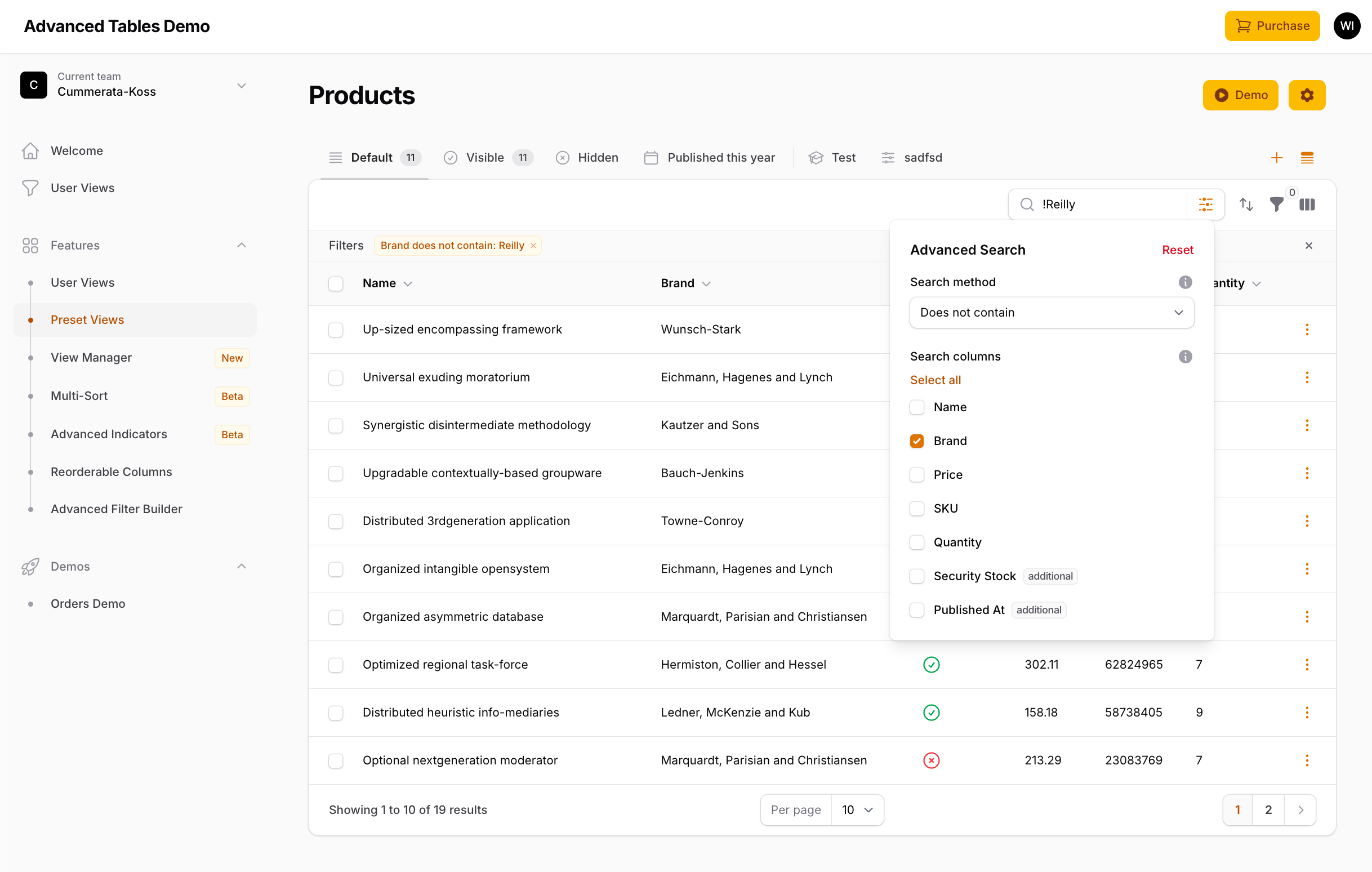
 Advanced Search replaces Filament’s default table search with a powerful query builder. Your users can search using eight different constraints like “equals”, “starts with”, “ends with”, and more. They can select which columns to search, build multi-group queries with AND/OR logic, and use keyboard syntax shortcuts to quickly change the search behavior directly from the search input. Selected options appear as interactive badges in the search field for easy management. Advanced Search is fully integrated with Preset Views, User Views, and Quick Filters.
Enabling Advanced Search
Advanced Search is disabled by default. To enable, addadvancedSearchEnabled() to your panel provider:
Note: Tables that use Filament’s ->searchUsing() callback keep Filament’s search, as Advanced Tables cannot know how your callback should be changed.
After enabling, be sure to run npm run build and php artisan filament:upgrade.
Advanced Search options can also be configured in the advanced_search section of config/advanced-tables.php.
Using Advanced Search
Once enabled, the search field includes an interactive dropdown for building search queries. Clicking the search input or pressing the down arrow key opens the dropdown, which is organized into the following sections:- Constraints — Select a search constraint (e.g., Contains, Equals, Starts with)
- Columns — Select which columns to search (when column selection is enabled)
- Database — Select extra searchable columns from related models (when column selection is enabled)
- Boolean — Add AND/OR operators to create search groups (when grouping is enabled)
- Constraint badges (gray) — Show the active search constraint
- Column badges (blue) — Show which columns are being searched
- Operator badges (yellow) — Show the AND/OR operator connecting search groups
Keyboard navigation
Search Constraints
Advanced Search includes eight search constraints. Users can select a constraint from the dropdown or type a syntax prefix directly in the search input:
For example, typing
=order will search for records that exactly equal “order”, while typing -^test will exclude records that start with “test”.
Tip: The search reference (info icon) in the dropdown displays all available syntax shortcuts for quick reference. If the shortcuts get in the way of your users’ searches, you can disable them.
”Does not” constraints
A “does not” constraint always returns the exact opposite of its positive constraint. This means that:- A record with an empty value is included, since an empty value does not contain the search term.
- For a relationship column, a record is included when none of its related records match, including when it has no related records at all.
- “Does not contain” with several words returns the records that are missing at least one of the words. Wrap the words in quotes to exclude an exact phrase instead.
Words and phrases
“Contains” and “Does not contain” split the search term into words, just like Filament’s search. Each word must match for a record to be included, so searching forJohn Doe only matches records that contain both “John” and “Doe”. If your table uses splitSearchTerms(false) the search term is kept as a single phrase.
To search for an exact multi-word phrase without splitting, wrap the search term in quotes. For example, "John Doe" will match the exact phrase “John Doe” rather than matching “John” and “Doe” separately.
“Equals”, “Starts with”, “Ends with”, and their opposites always treat the search term as a single phrase, so “Starts with: city of” matches “City of Gold”.
Date and number columns
“Equals” and “Does not equal” compare date and number columns by their value instead of as text:- A date such as
2025-01-15matches the whole day, so it also finds records that were stored with a time. Dates can be typed as2025-01-15,2025/01/15,2025.01.15, or in the format set with your table’sdefaultDateDisplayFormat()anddefaultDateTimeDisplayFormat()methods. Month and day names are read in the locale of your application. Adding a time, like2025-01-15 10:30:00, matches that second. - A number such as
5matches5,5.0, and5.00. - A search term that is not a date or a number is never compared to a date or number column.
Note: Dates are compared as they are stored in the database. If you display dates in a different timezone, use a date filter instead.
Custom search queries
Columns that use a custom search query, like->searchable(query: ...), are searched as “contains” regardless of the selected constraint, as Advanced Tables cannot know how your query should be changed. The “does not” constraints exclude the records that your query matches.
To support every constraint, accept the $constraint parameter in your query. It is always the positive constraint, since Advanced Tables takes care of the “does not” constraints for you:
Note: Do not add a type toThe same applies to columns translated with a translatable content driver and to closures passed to your table’s$constraintand give it a default value ofnull. Filament also runs your query when Advanced Search is not used, such as for individual column searches, where$constraintis not available.
->searchable([...]) method. Since those closures do not have a name, they are only searched when the user is searching all columns.
Column Selection
By default, Advanced Search searches all globally searchable columns. You can enable column selection to let users choose which specific columns to search:- Columns — Table columns that are visible and globally searchable
- Database — Extra searchable columns from related models (configured via
$table->getExtraSearchableColumns())
Grouping
Grouping allows users to build complex multi-group search queries with AND/OR logic. To enable:How groups combine
Groups connected by AND narrow results — all conditions must match. Groups connected by OR broaden results — any condition can match. Under the hood, groups connected by AND stay in the sameWHERE clause, while groups connected by OR create separate WHERE clauses joined with orWhere(). For example:
Maximum groups
You can limit the maximum number of search groups (default is 5):Boolean Syntax
In addition to using the dropdown, users can type& for AND or | for OR directly in the search input to create new groups. This feature is disabled by default:
Note: Boolean syntax is disabled by default because&and|symbols may appear in legitimate search terms. Only enable this after educating your users about the syntax. If a user needs to search for a term containing&or|, they can wrap the search term in quotes to prevent it from being interpreted as a boolean operator. Advanced Search is smart enough to not interpret these symbols as operators while the user is actively typing — they are only parsed when the search is submitted.
Using with Filament’s search
When Advanced Search is enabled it replaces Filament’s search, but everything that sets Filament’s search keeps working and is treated as a “contains” search across all columns:- Links to a List page with a
?search=query string. - The
searchTable()testing helper. - User Views that were saved before Advanced Search was enabled.
Note: The search is moved from Filament’s$tableSearchproperty to the$advancedSearchproperty, so a test that assertstableSearchafter callingsearchTable()should assertadvancedSearchinstead.
Keeping the search in the URL
Advanced Search is kept in the URL on List pages and Manage Related Records pages. Relation managers and table widgets can share a page, so their search is not kept in the URL. You may change this by overriding theshouldBindAdvancedSearchToUrl() method on your Livewire component:
Widgets
If your widgets read the page’s table using Filament’sExposesTableToWidgets and InteractsWithPageTable traits, use Advanced Tables’ Archilex\AdvancedTables\Widgets\Concerns\ExposesTableToWidgets and Archilex\AdvancedTables\Widgets\Concerns\InteractsWithPageTable traits instead so the search is applied to your widgets as well.
Using with Preset Views
You can apply default search settings to your Preset Views using thedefaultSearch() method. Each search group is an array with columns, constraint, value, and operator keys:
defaultSearch() method accepts the following parameter:
Tip: You can also pass a simple string like ->defaultSearch('pending') which will be used as a search term with the “contains” constraint. See Applying a default search in the Preset Views documentation for more on the string format.
Each search group array has the following keys:
Using with User Views
Advanced Search settings are automatically saved and restored with User Views. When a user saves a User View, all search groups including their constraints, selected columns, values, and operators are included. When the User View is loaded, all search settings are restored.Advanced Search Configurations
Advanced Tables offers multiple ways to customize Advanced Search. Unless specified otherwise, these options can be configured directly on theAdvancedTablesPlugin object inside your PanelProvider.
Disabling Advanced Search
Advanced Search is disabled by default and must be enabled in your panel provider. If you have enabled it globally but want to disable it for a specific table, you may override theadvancedSearchIsEnabled() method on your List page:
Disabling the search shortcuts
The syntax shortcuts can get in the way when your users search for values that start with one of the shortcuts, like$500 or -250. You may disable them using advancedSearchConstraintSyntaxEnabled(). Users can still select a constraint from the dropdown:
Limiting the number of words
Each word in a “contains” search is searched for in every searchable column. You may limit the number of words that are searched usingadvancedSearchMaxWords(). Any additional words are ignored:
Dropdown column order
By default, constraints are shown first in the dropdown. To show columns first instead:Opening dropdown on focus
By default, the dropdown opens when the user presses the down arrow key. To open the dropdown automatically when the search input receives focus:Keybindings
You can configure keyboard shortcuts to focus the search input:Customizing the trigger action
You can customize the Advanced Search trigger button usingadvancedSearchTriggerAction(), following the same pattern as Filament’s trigger action customization:
Customizing labels
You may customize Advanced Search labels in the language file. Publish the language files and update theadvanced_search section in the advanced-tables.php language file.